Gemini Images Too Blurry? Here’s How to Make Them Crystal Clear in Seconds
Gemini Image / Nano Banana Pro images look blurry? With X-Design, you can make blurry images clear in one click. It automatically restores details, enhances textures, boosts resolution, and generates high-definition images in just a few seconds.


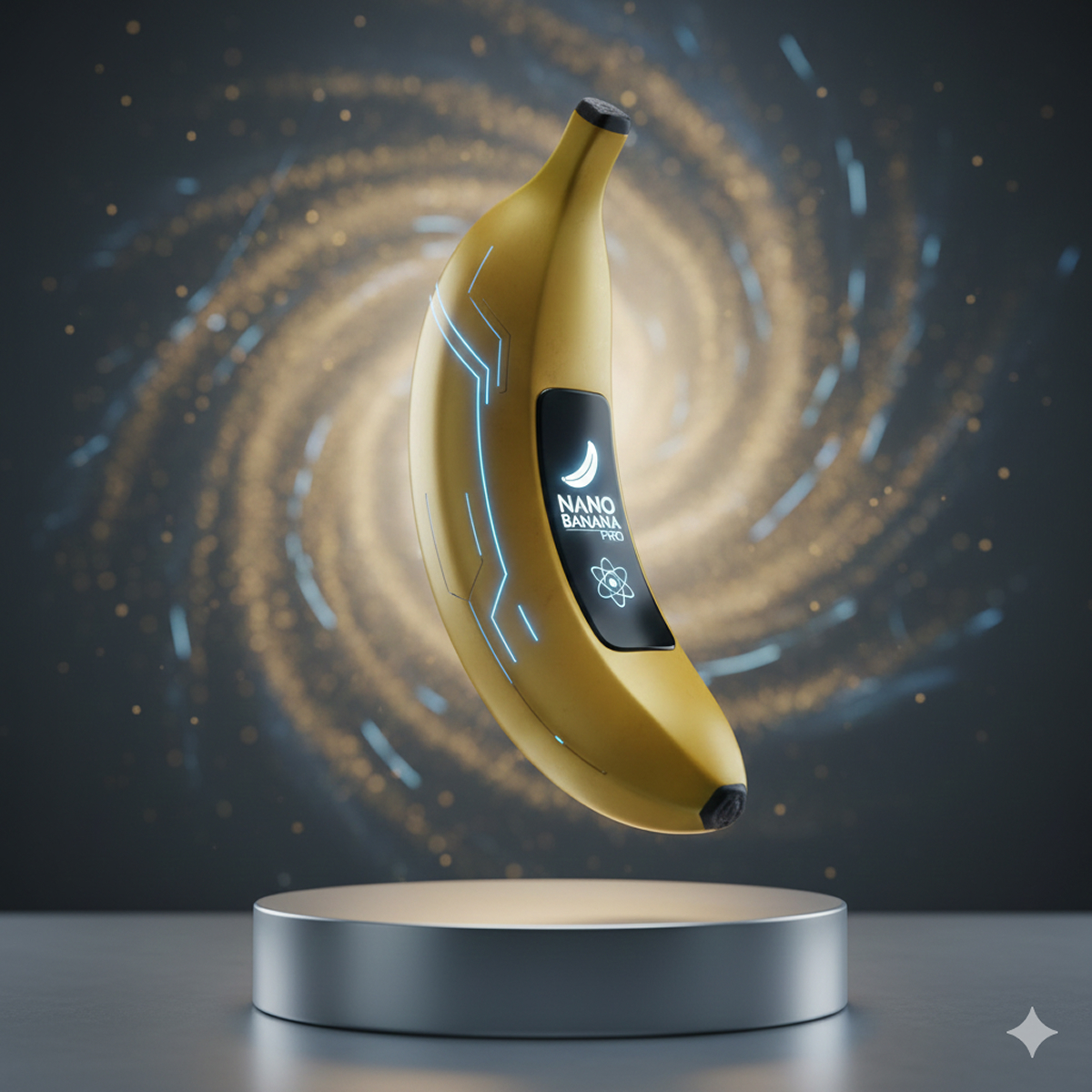
Gemini and Nano Banana Pro (Gemini-3-Pro Image) are among the most popular AI image-generation models today.
However, many users notice that Gemini images can sometimes look blurry, soft, or lacking in detail.
This guide will explain:
👉 Why Gemini images become blurry?
👉 How to enhance Gemini image clarity instantly?
👉 The best AI tool for Gemini users — X-Design Image Enhancer.
- Why Are Gemini Images / Nano Banana Pro Images Blurry?
- The Best Way to Make Gemini Images Clearer — X-Design Image Enhancer
- Why X-Design Is the Best Choice for Gemini Image Enhancement
- How to Use X-Design to Enhance Gemini Images
- Examples of Different Image Enhancement Results with X-Design
- Other Methods vs. X-Design (Why X-Design Wins)
- FAQ — Gemini Image Enhancement
- Final Thoughts
Why Are Gemini Images / Nano Banana Pro Images Blurry?
1. Resolution Limitations
Although Gemini-generated images have good quality, their default resolution is not high, making them blurry when enlarged. Generating high-resolution images directly is also costly.
2. Insufficient detail reconstruction
Fine textures like skin, hair, or Material may not be fully generated.
3. Compression loss
Uploading, downloading, or screenshotting often causes further quality degradation.
4. Noise and blur in complex scenes
Night scenes, motion, and detailed backgrounds are more prone to blur.
The Best Way to Make Gemini Images Clearer — X-Design Image Enhancer
X-Design is the best tool for enhancing Gemini-generated images. It can automatically enhance the resolution, clarity, details, and textures of Gemini images. All you need to do is upload the image, and the AI will automatically complete the following steps:
- Enhances clarity and sharpness
- Restores missing details
- Improves textures (skin, fabric, hair, etc.)
- Removes noise
- Upscales images up to 4K
No manual editing or Photoshop skills needed.
Why X-Design Is the Best Choice for Gemini Image Enhancement
- Ultra-HD enhancement (up to 2K & 4K)
Turn low-resolution Gemini images into crystal-clear HD visuals
- Smart detail reconstruction
Restores natural texture for faces, products, and objects.
- No style distortion
Keeps the original artistic style intact.
- Clean, natural enhancement
No artificial sharpness or strange artifacts.
- Supports batch processing
You can also upload multiple Gemini images at once for automatic enhancement.
How to Use X-Design to Enhance Gemini Images
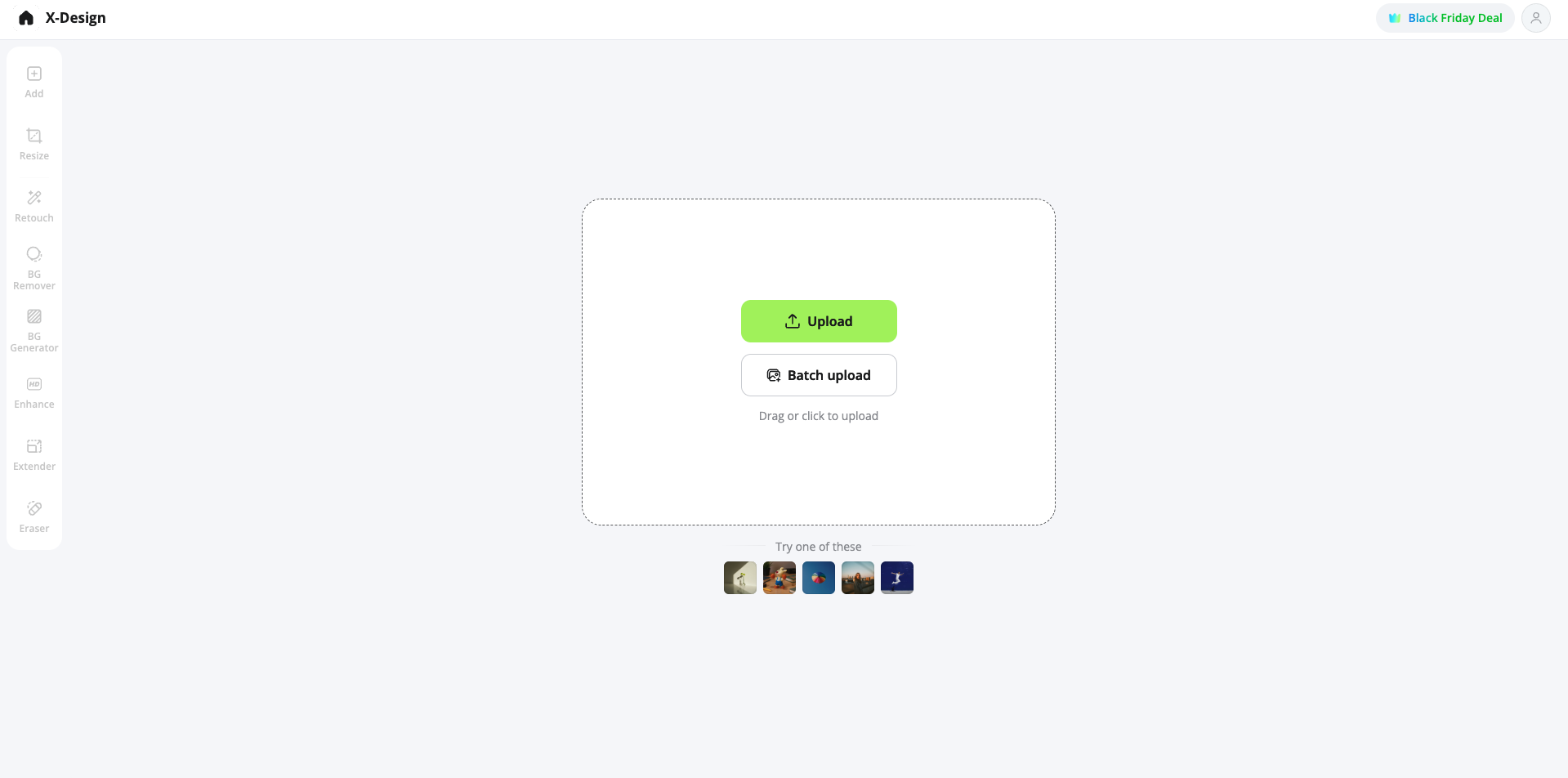
Step 1: Upload your Gemini image
Step 2: Choose “Enhance” mode
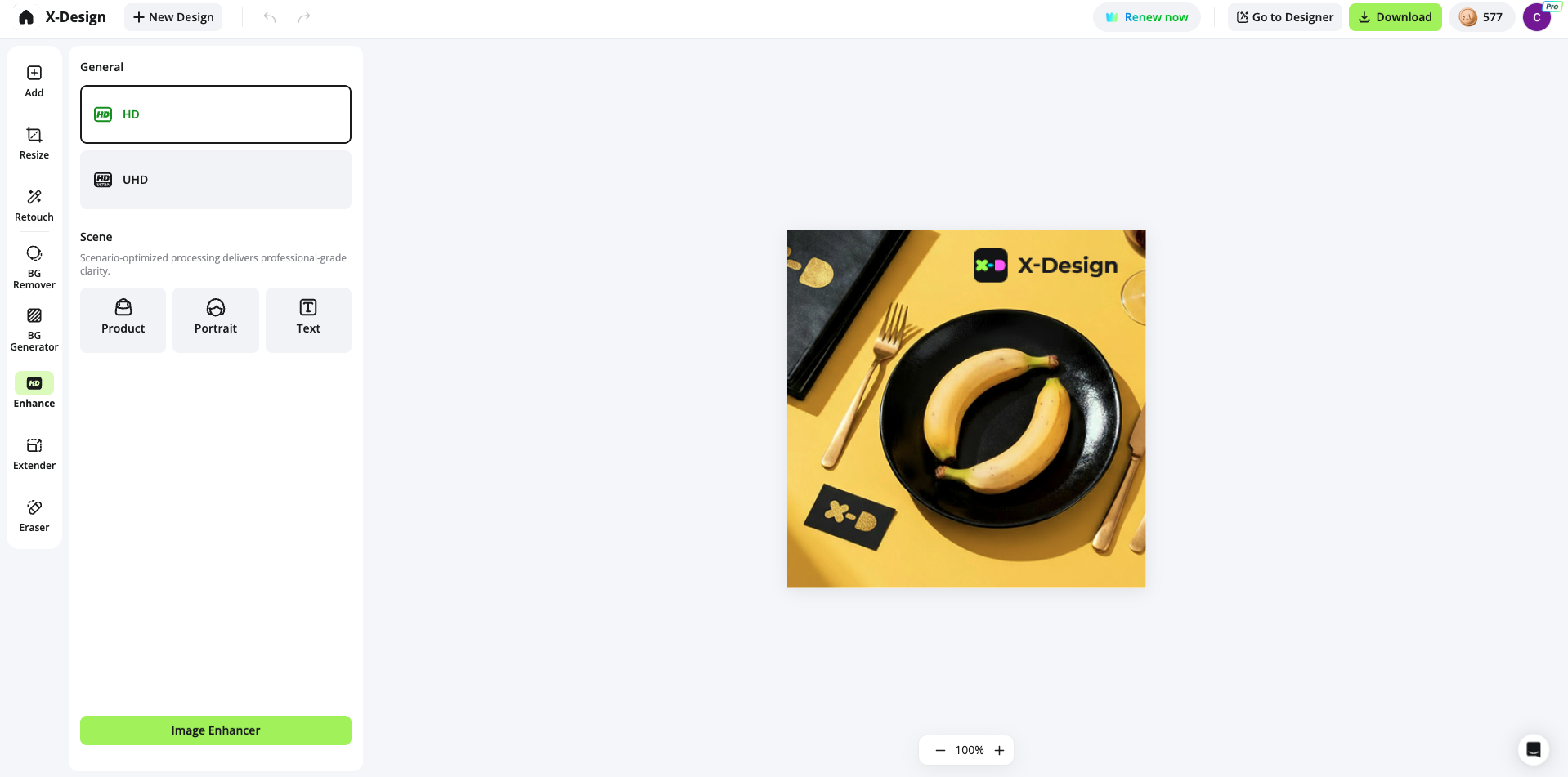
Step 3: Let the AI process automatically
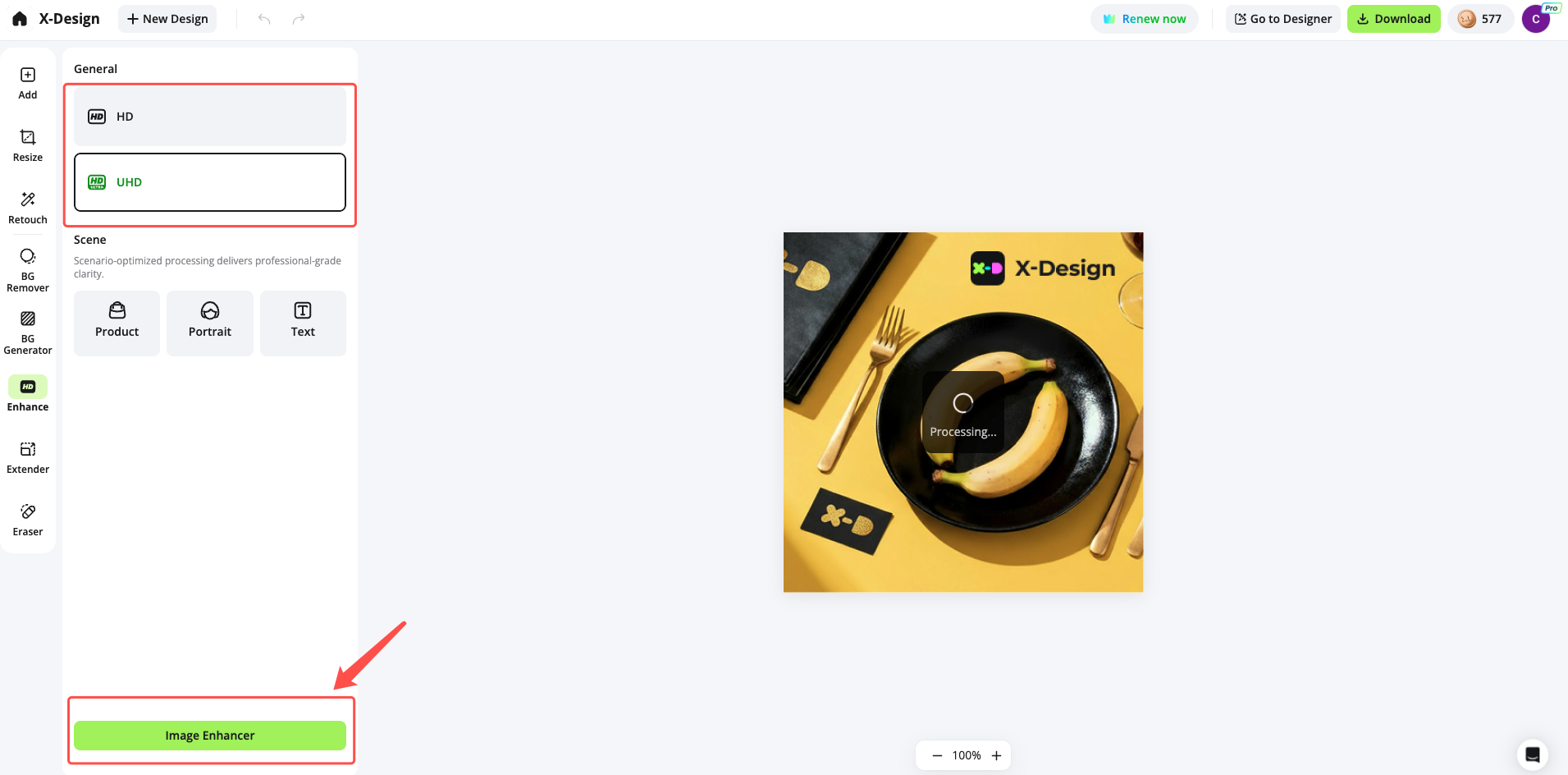
Step 4: Download the HD version
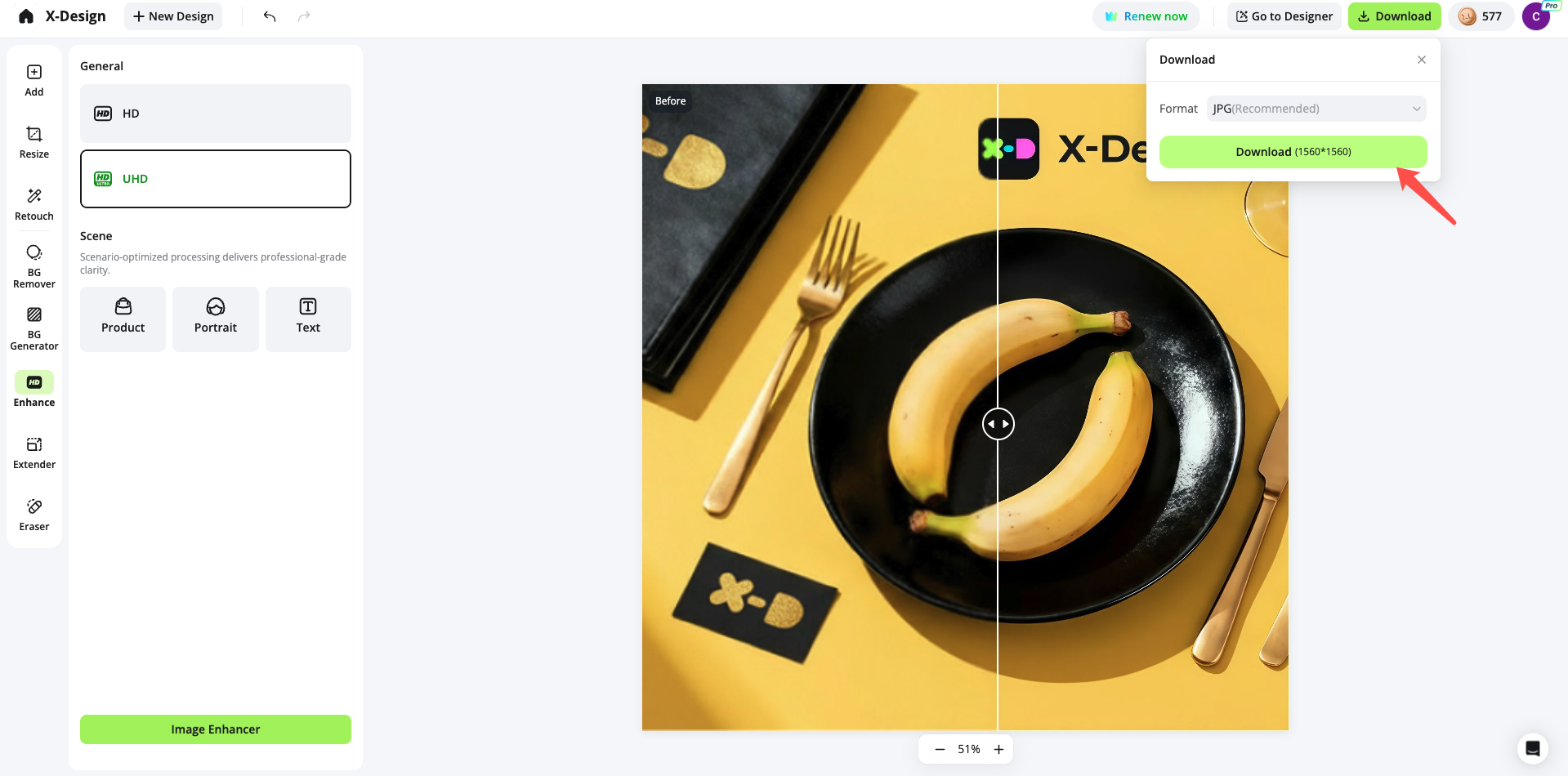
The entire process takes just a few seconds.
Examples of Different Image Enhancement Results with X-Design
- Portrait enhancement: Sharper eyes, skin, and hair.
- Product photo enhancement: Clearer textures and more defined shapes.
- Text clarity improvement: Cleaner and sharper text.
Other Methods vs. X-Design (Why X-Design Wins)
Method 1: Manual Photoshop sharpening
Cons: Requires skill, adds noise
Method 2: Free online tools
Cons: Low quality, unstable
Method 3: Stretching resolution
Cons: Makes the image even more blurry
X-Design provides the highest quality, fastest, and most natural enhancement.
FAQ — Gemini Image Enhancement
Q1: How large can Gemini images be enhanced?
Up to 4K resolution.
Q2: Will the image style be changed?
No, X-Design preserves the original style.
Q3: Can it enhance human portraits?
Yes, extremely well.
Q4: Does X-Design support batch enhancement?
Yes. X-Design supports uploading folders for batch processing.
Q5: Can I enhance images on my phone?
Yes, X-Design works perfectly on mobile browsers.
Final Thoughts
Gemini image blurriness is common, but the fix is incredibly simple.
With X-Design, you can turn any blurry Gemini image into a crisp, high-quality HD version in seconds.
Related articles

4 Ways To Remove Backgrounds from Photos

How to Remove White Background from Images

How to Take a Passport Photo with an Iphone