
I’m someone who loves playing with colors and layouts to tell a story. It fascinates me to see how even the smallest detail can change the entire look of a graphic. However, AI design tools claim to do exactly that nowadays. I wonder if they can really replace human creativity? Or is it just another tech trend?
So, I decided to find out. I tested nine of the best AI tools for graphic design to see what they’re actually like to use. Some tools completely blew me away, while others made me miss the old-school way of designing.
If you’ve been curious about whether AI can really help you create better designs (or just make your life a bit easier), you’ll want to see what I found.
The 9 AI Tools for Graphic Design I Tested
To know more about the best AI tools for graphic design, I picked the following nine tools. My analysis is based on their ease of use, creativity, and how good their designs turn out.
1. Adobe Firefly
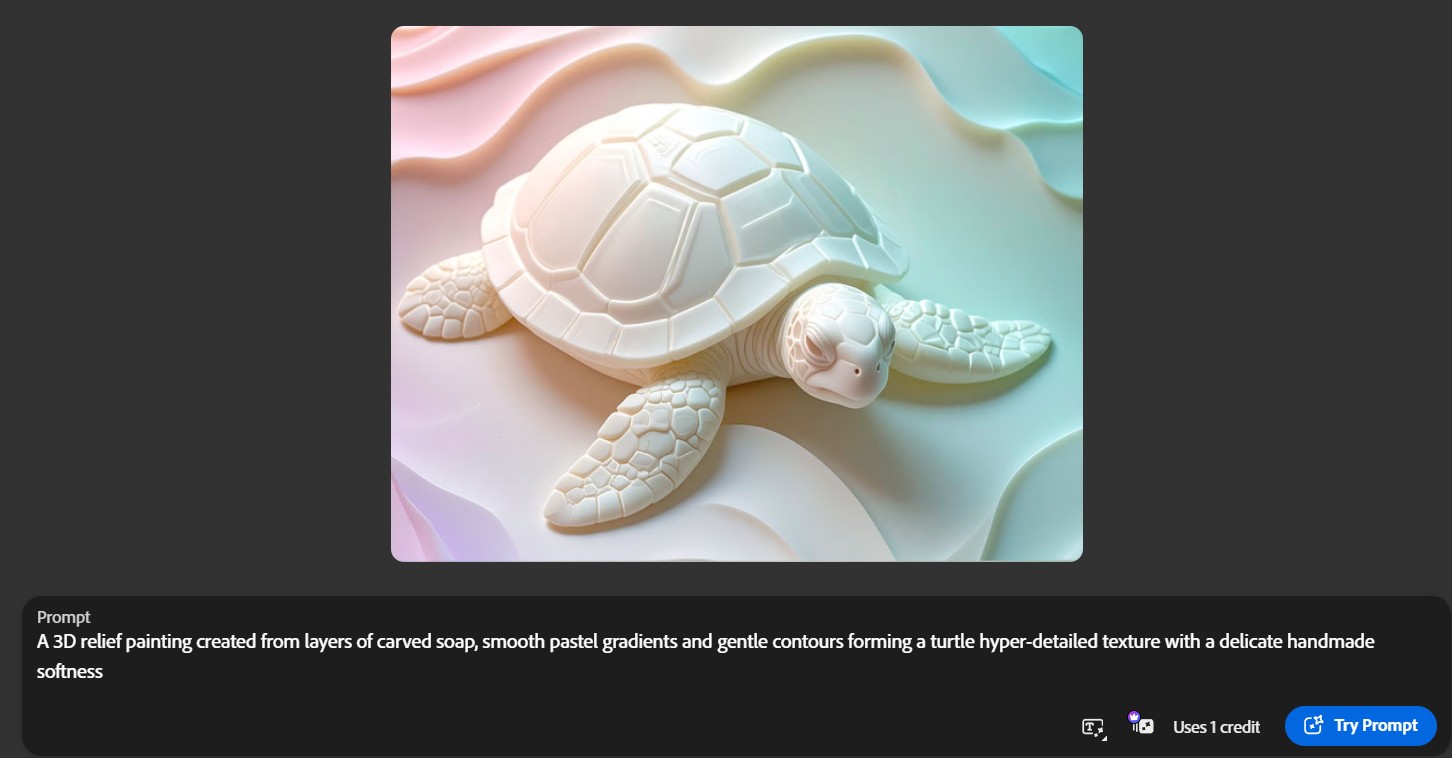
Adobe Firefly was honestly a delight to use. I started with a simple text prompt suggested by the tool itself.
The brief was: “A 3D relief painting created from layers of carved soap, smooth pastel gradients, and gentle contours forming a turtle hyper-detailed texture with a delicate handmade softness.”
The tool generated four soft, pastel-toned visuals that looked so polished, it was hard to believe they were AI-made. What I loved most was how clean and detailed the images felt, almost like handcrafted art.
I played around with the “Edit” and “Generative Fill” options too, just to see how flexible it was. When I asked it to make the turtle’s shell look translucent, Firefly nailed it. The light passing through gave it this dreamy, frosted-glass look.
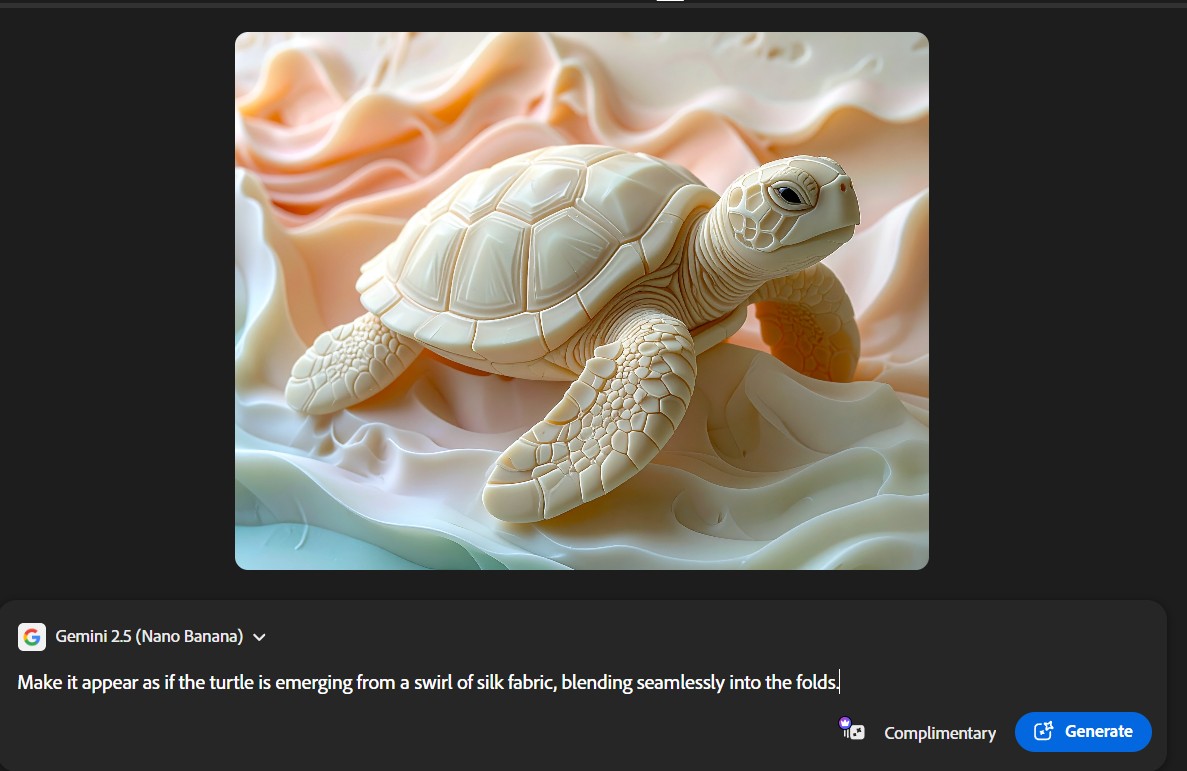
Overall, the interface felt simple and familiar. Overall, Firefly feels like a mix of creativity and control, perfect for designers who want both beauty and precision.
2. Canva
Canva AI looked so promising at first: clean and modern. The interface is super easy to navigate, and I liked how it instantly offers multiple options for what you can create, from images and designs to videos and docs. I used it to generate an Instagram post with the prompt “Create a social post that shows a plant growing out of a sketchbook blending art and life.”
The results were decent but not quite what I envisioned. The images looked pretty, but they didn’t fully capture the concept.
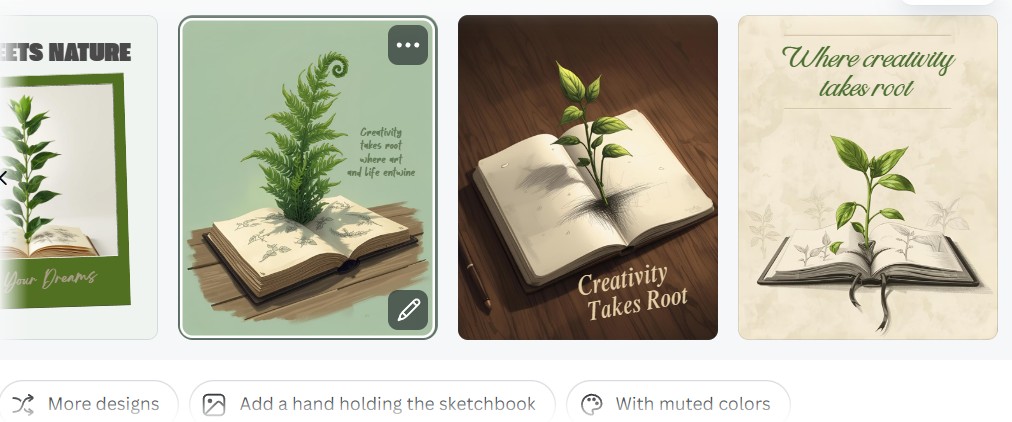
The plant seemed placed on the book instead of growing from it. I tried refining the prompt and requesting edits a few times, but the changes were minimal. It didn’t really adapt to the detailed instructions.
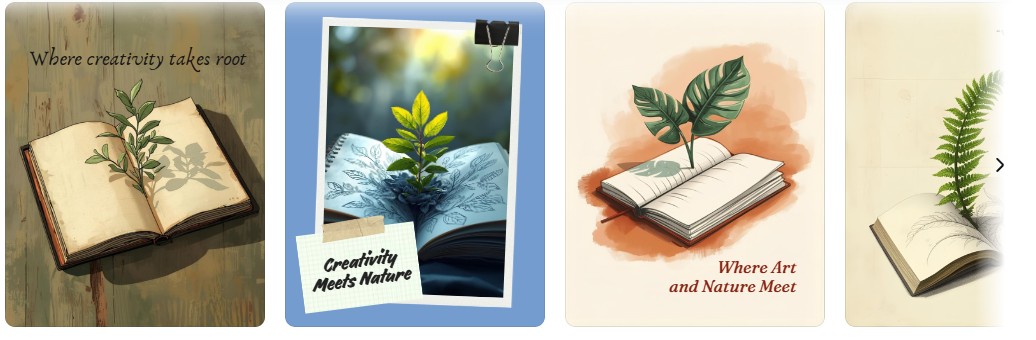
That said, Canva’s built-in editor might help tweak the AI output later, though I didn’t explore that part. Overall, free Canva AI feels easy to use but is still not as creatively accurate as expected.
3. Visme
Visme’s AI Designer definitely gives off a professional vibe at first glance: clean, modern, and loaded with possibilities. I tried creating a digital marketing banner with a prompt,”Create a website banner image for a digital marketing company. Show a modern office setup with laptops, charts, and a team brainstorming ideas. Use clean design, soft gradients, and a professional tone.”
I was specifically impressed by the speed with which it was offering results. From resizing text blocks to adjusting layouts, the editor gave me plenty of control. The “AI Hub” section was especially handy.
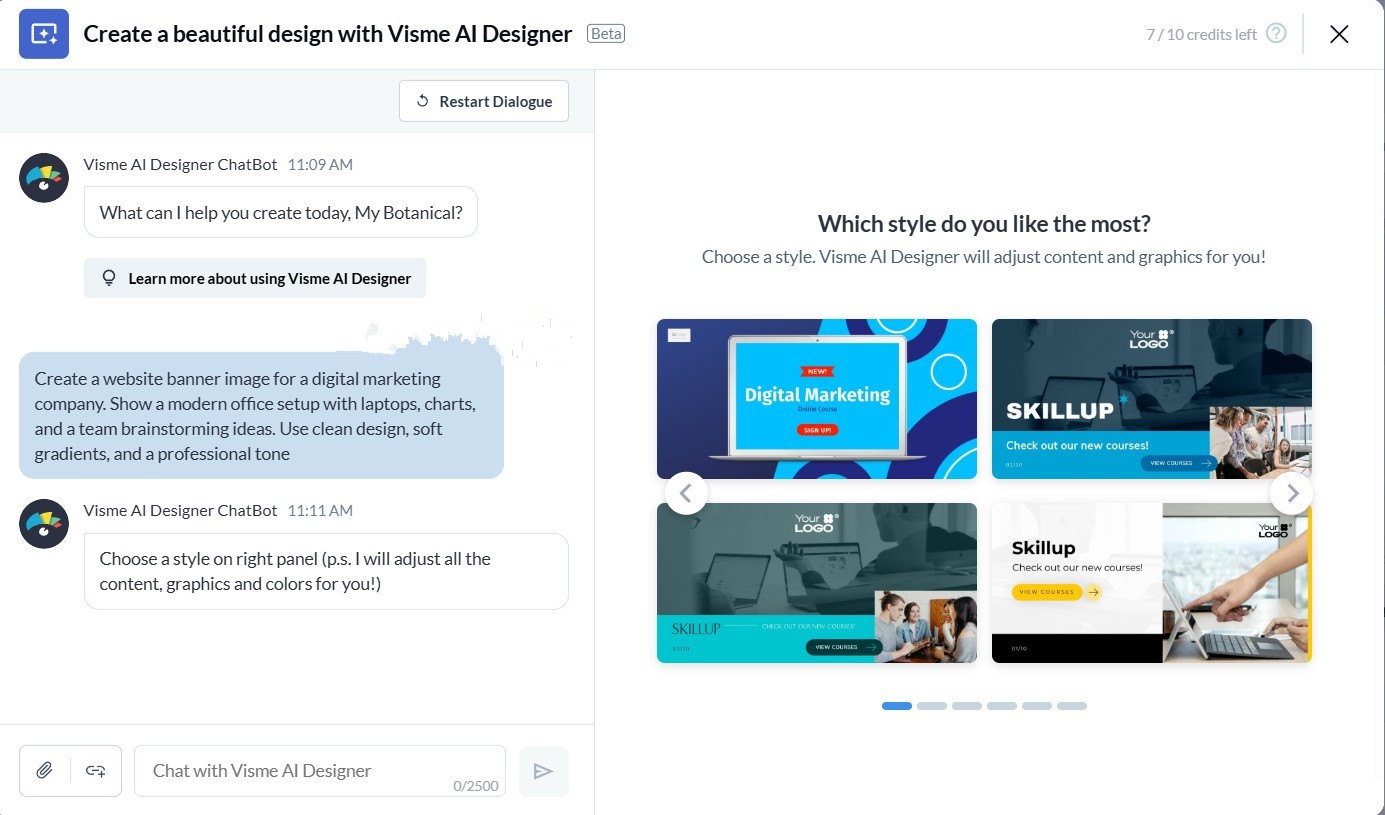
However, the actual AI output felt more like a template-based design generator than a truly creative assistant. The visuals it produced were decent, but not unique or deeply aligned with the prompt. You still need to step in and make manual tweaks for a polished finish.
The biggest downside? You can’t download your design unless you upgrade to the paid plan, which was a bit disappointing. Overall, Visme AI is powerful in tools, but limited in creative freedom and accessibility.
4. Ideogram
Ideogram is an easy AI graphic design generator to use for creating images. Its interface is clean and simple. Just type your vision for the image.
I wrote this prompt: “An elderly couple walking hand-in-hand through a peaceful park, surrounded by a canopy of green trees. Children are playing happily nearby, and soft sunlight filters through the leaves.”
The result was beautiful. The image looked calm and realistic, with gentle sunlight, bright green trees, and a peaceful park scene. It perfectly captured the warm feeling I had in mind.
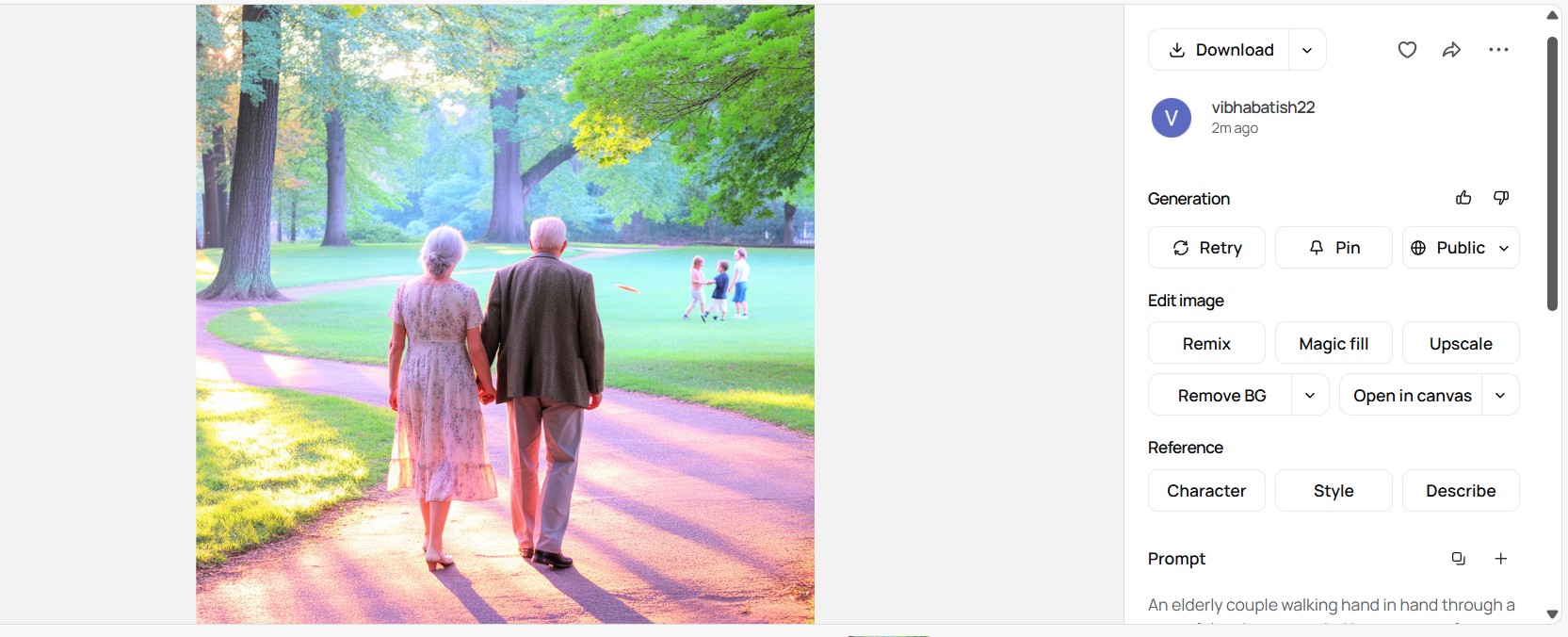
I also liked the “Remix” feature. It let me edit the same image in different styles without typing the prompt again.

However, the free version has limited credits, so you cannot use it enough without upgrading. But overall, Ideogram is perfect for creating warm, expressive visuals with very little effort.
5. X-Design
X-Design feels more like chatting with a smart design assistant than using a typical AI logo design software. I typed the prompt “Create a logo for a luxury hair and nail salon. Use elegant text and a simple line drawing of hair. Soft rose gold, blush pink, and ivory colors can be included for a modern and feminine look.” The tool instantly started “thinking” and prepared design inspirations that matched the style.
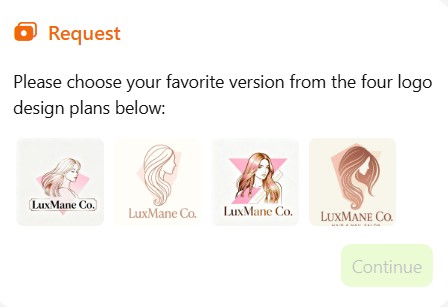
It works on a credit system, and if you don’t like the first results, you can simply ask for more ideas. It even asks helpful questions, such as your brand name, logo type, or preferred symbols, to refine the designs. After you pick a concept, edit it using built-in tools such as AI Editing, Replace Text, Crop, or Add to Brand Kit.
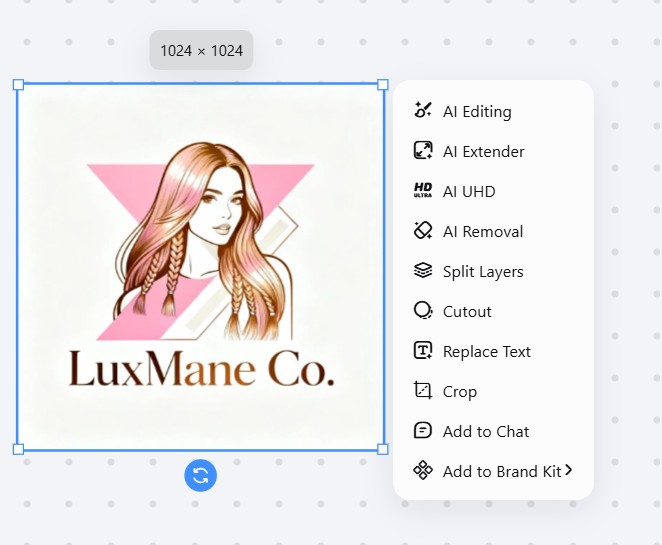
Overall, X-Design is fast, interactive, and fun, and may work for small brands or first-time designers.
6. Autodraw
AutoDraw is such a fun graphic design AI tool to play with. It turns your quick doodles into clean, nice-looking drawings. I started by sketching a small scene: a cloud, waves, and a boat.
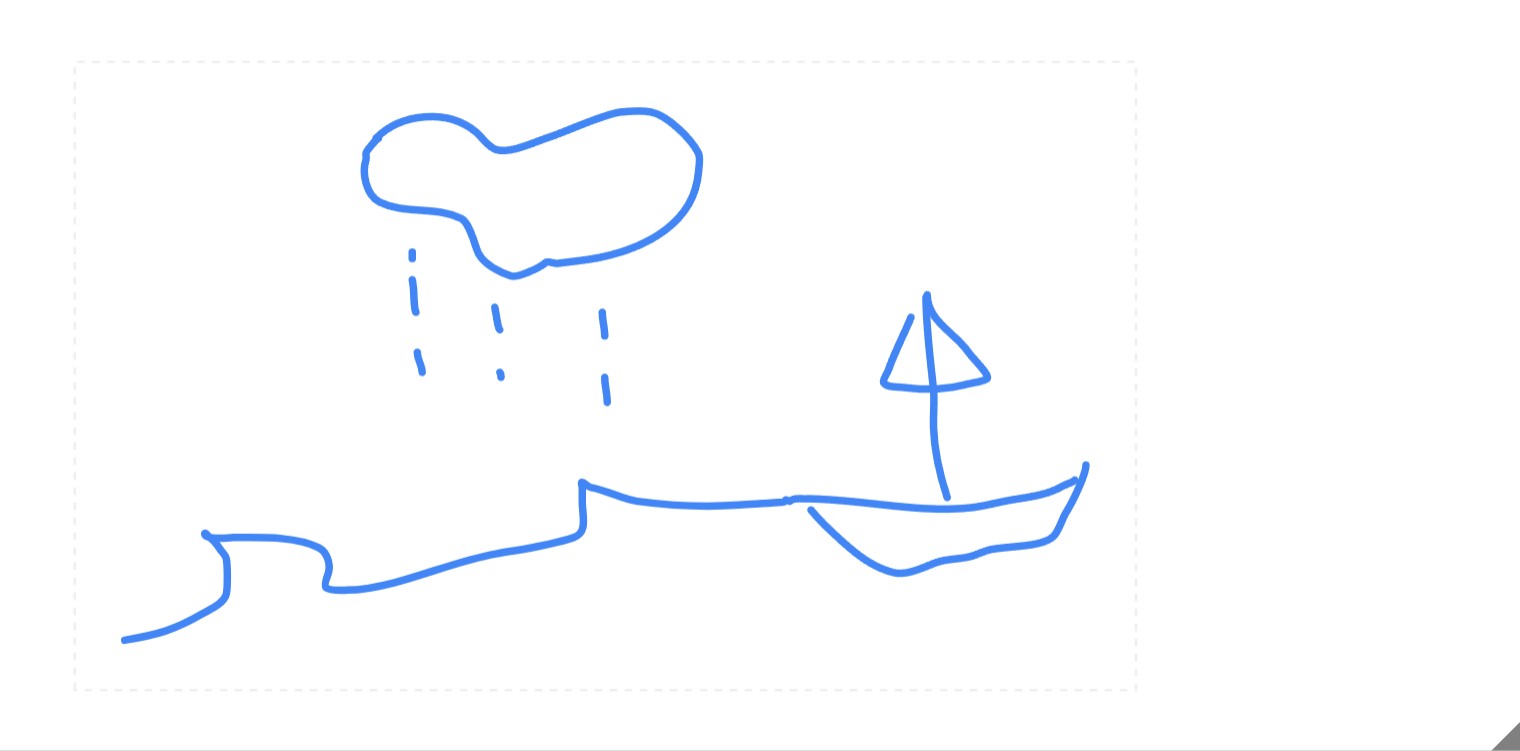
The tool instantly guessed what I was trying to draw and showed suggestions on top. I picked one, and it looked so much better than my rough sketch.
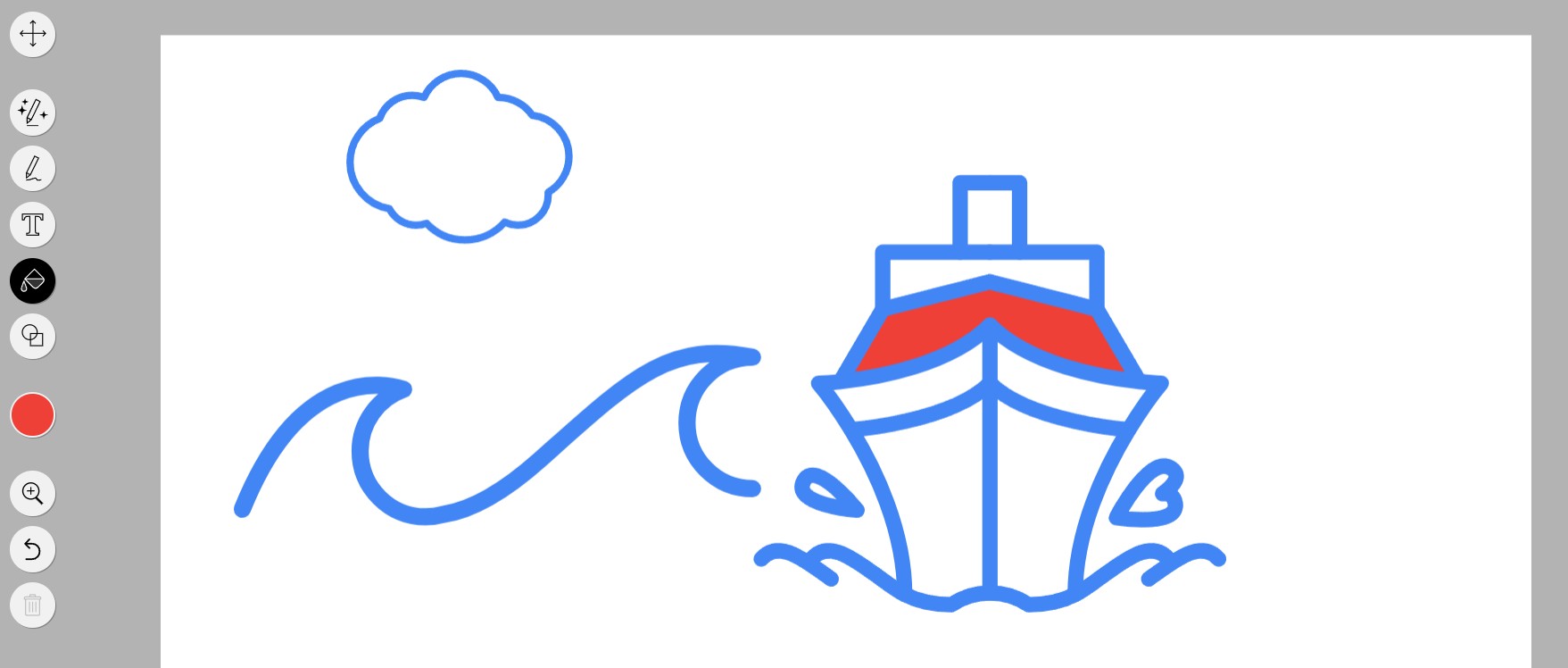
It’s really easy to use. You just draw, choose the best match, and add color or text if you want. I even filled part of the boat with red, and it looked great.
The best thing is that it’s free and works right in your browser. You can download your drawing with one click. AutoDraw is perfect for quick sketches, simple projects, or just having fun with drawing.
7. ChatGPT
ChatGPT was very helpful when I tried to create a design idea. I asked it to make a social media post for The Forex Corner with the title “5 Habits That Make You a Better Trader.” From just one short prompt, it gave me a full design plan: colors, fonts, layout, and even how the post should look on Canva.
It suggested a modern style with a dark black background and gold text. It also divided the design into clear parts: the title, subheading, main points, and a CTA. I liked that it even offered to make a mockup version for download.

But ChatGPT can’t actually create or edit real images. You may need another design tool for that. That said, it is great for planning, getting ideas, and writing clear design briefs, making the design process faster and easier.
8. Kittl
Kittl AI is a really fun tool that helps you make pictures and designs. I tried it by typing a short sentence: “Create an image of a young girl with pale skin and curly hair. She wears glasses and is looking straight forward.” In just a few seconds, Kittl made a very nice picture that looked real and detailed.
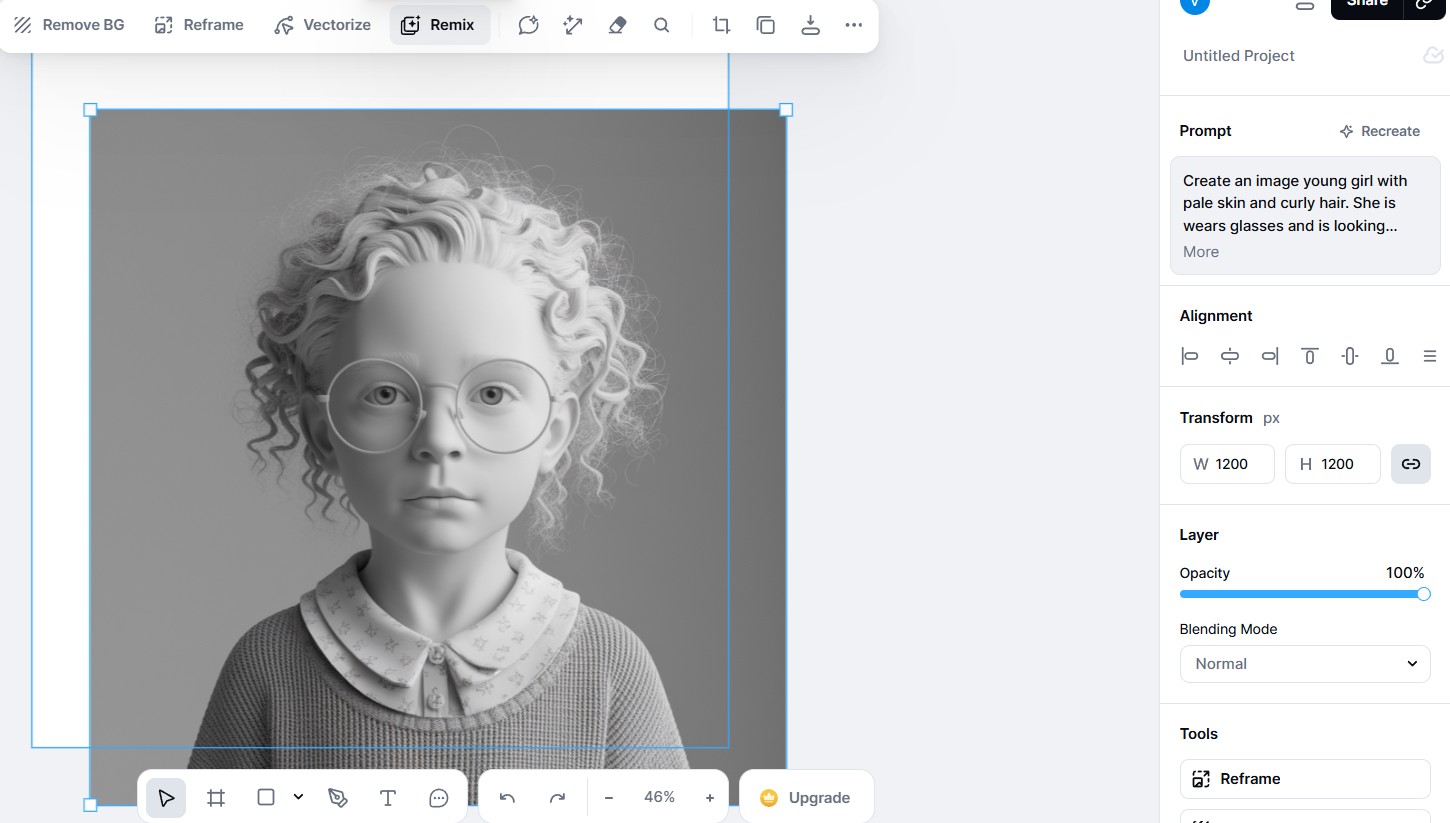
Make changes to the picture right there. Add colors, move things around, or make it look like a painting. I added soft colors and made my picture look like a watercolor drawing.
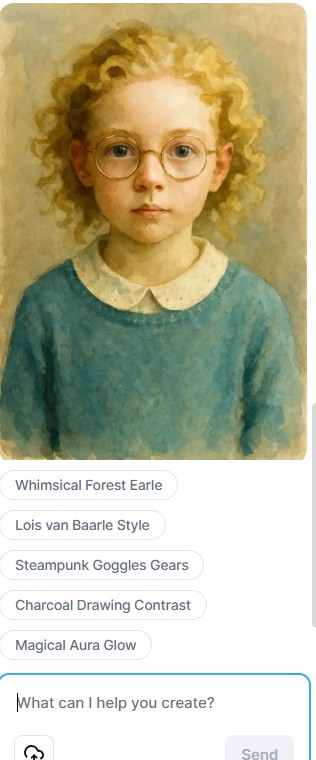
The tool is simple to use. Even if you’ve never made designs, you can do it easily here. Some special tools cost money, but you can still make great pictures for free. Kittl is perfect for having fun and being creative.
9. Let’s Enhance
Let’s Enhance is a smart graphic design AI tool for improving pictures. I tried it by typing a prompt: “Realistic photo of a swarm of ducks swimming in the shape of a heart. It is golden hour, and one side of the waterbody is sparkling.” The tool created the image in seconds, and it looked amazing!
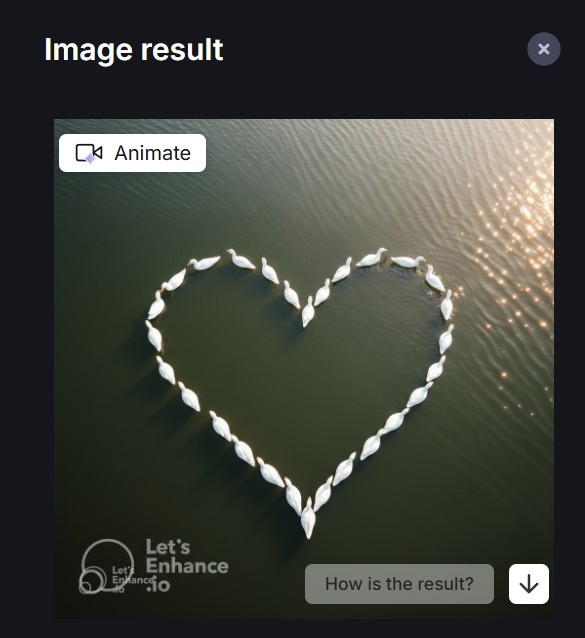
Editing is easy if needed. I asked the tool to make the ducks white, fix the heart shape, and brighten the whole picture. Each time, it quickly edited the image and gave a better version. You can also make images sharper, clearer, or bigger without losing quality.
The interface is simple and clean, and the “Chat Editor” feels natural. You just tell it what to do in plain words. Some features use credits, but the results are worth it. Let’s Enhance is perfect for anyone who wants to fix or improve photos quickly and beautifully.
Parting Thoughts
After testing the nine best AI tools for graphic design, I can say each one had its own strength. Some, like Adobe Firefly and Ideogram, blew me away with how realistic and artistic their designs looked. Others, like Canva and X-Design, made creating visuals feel quick and effortless.
ChatGPT and Kittl are great for shaping ideas. Images made by using Let’s Enhance look crisp and professional. AI tools may not be as creative as humans yet; however, they make designing easier, faster, and more fun. So pick one or more you need to design an image, and Thank me later.
Related articles
How to Design a Good Advertising Poster

Human vs. AI in Design: Who Really Creates Better Art?
The Difference Between Motion Graphics and Animation: A Detailed Analysis